
Smartphones have become an essential part of our daily lives, and iPhones are among the most popular devices due to their speed, reliability, and user-friendly interface. However, over time, even the fastest iPhones can slow down due to accumulated data, unnecessary apps, and system clutter. If you’ve noticed your iPhone running sluggishly, don’t worry—there are simple steps you can take to speed it up without needing technical expertise. Here are three easy ways to make your iPhone faster and improve its overall performance.
1. Clear Unused Apps and Free Up Storage Space
One of the most common reasons for a slow iPhone is insufficient storage space. When your device is close to full capacity, it struggles to function smoothly. Clearing out unused apps, deleting unnecessary files, and managing storage properly can help restore its speed.
Check and Manage Storage
To check your storage, follow these steps:
Apple will also suggest ways to free up space, such as offloading unused apps or deleting large files.
Open Settings on your iPhone.
Tap General and then select iPhone Storage.
You’ll see a breakdown of what’s consuming your space, including apps, photos, system data, and cached files.
Delete Unused Apps
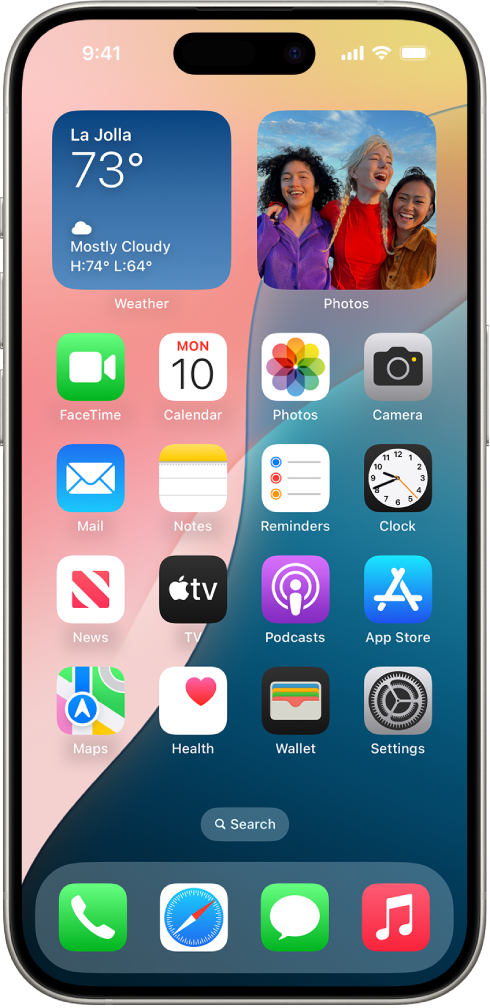
If you have apps that you haven’t used in months, they’re just taking up valuable space. You can remove them manually:
- Press and hold an app icon on the home screen.
- Tap Remove App and then select Delete App.
- Alternatively, in the iPhone Storage menu, tap an app and choose Delete App.
For apps you occasionally use but don’t need constantly, Apple provides an Offload App option. This removes the app while keeping its data intact so you can reinstall it later without losing information.
Clear Cached Data and Old Messages
Apps like Safari, WhatsApp, and social media platforms store temporary files that take up space. To clear them:
- For Safari, go to Settings > Safari > Clear History and Website Data.
- For apps like Instagram or Facebook, consider uninstalling and reinstalling them to remove cached files.
- Delete old messages and media in apps like iMessage and WhatsApp to free up space.
By following these steps, you can significantly improve your iPhone’s speed by freeing up memory and storage.
2. Update iOS and Restart Your iPhone Regularly
Software updates not only introduce new features but also improve performance, fix bugs, and optimize speed. If your iPhone is running slow, updating to the latest iOS version can make a big difference.
How to Update Your iPhone
To check for updates:
- Go to Settings > General > Software Update.
- If an update is available, tap Download and Install.
- Ensure your device is connected to Wi-Fi and has sufficient battery life (or is plugged into a charger).
Apple regularly releases updates with improvements that can fix lag and make your iPhone run smoother. Keeping your device up to date ensures that it operates efficiently.
Restart Your iPhone Regularly
Another simple yet effective way to speed up your iPhone is to restart it every once in a while. This clears the RAM (random-access memory), stops background processes, and refreshes the system.
To restart:
- If you have an iPhone X or later, press and hold the Side button and either Volume button until the power slider appears.
- For iPhone 8 or earlier, hold down the Power button until the slider appears.
- Slide to power off, wait a few seconds, and turn the device back on.
Restarting your iPhone every few days can prevent slowdowns caused by background processes and software glitches.
3. Disable Background App Refresh and Reduce Animations
Many apps run in the background, constantly updating even when you’re not using them. While this can be useful, it can also slow down your iPhone. Disabling Background App Refresh and reducing animations can significantly improve performance.
Turn Off Background App Refresh
- Open Settings.
- Tap General, then select Background App Refresh.
- Choose Off or select Wi-Fi only to prevent apps from refreshing in the background using cellular data.
Disabling this feature ensures that apps only refresh when you open them, reducing the strain on your iPhone’s processor.
Reduce Motion and Animations
iOS includes various animations and visual effects, such as the zoom effect when opening apps. While they look nice, they can slow down older devices. To disable them:
- Go to Settings > Accessibility > Motion.
- Toggle on Reduce Motion.
- This will remove unnecessary animations and make transitions feel snappier.
Additionally, you can disable transparency effects by going to Settings > Accessibility > Display & Text Size > Reduce Transparency. This reduces the visual load on your iPhone’s graphics processor, resulting in smoother performance.
Conclusion
Your iPhone doesn’t have to feel slow or sluggish. By following these three simple steps—clearing unused apps and storage, updating iOS and restarting regularly, and disabling background app refresh and animations—you can improve your iPhone’s speed and overall performance.
Keeping your device optimized ensures that it functions smoothly for longer, giving you a better user experience. Try these tips today and enjoy a faster, more responsive iPhone!





Leave a Reply